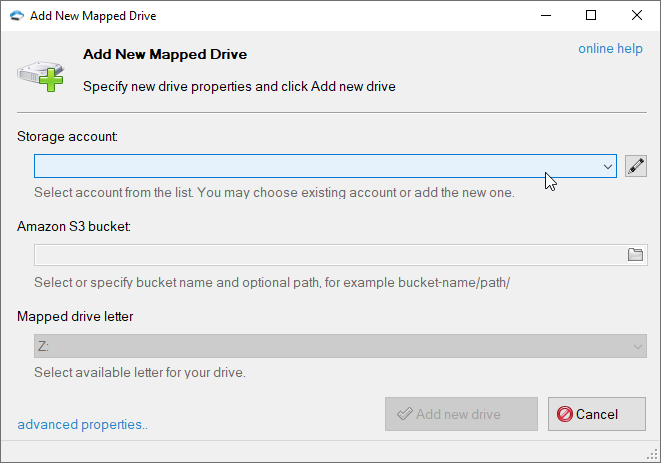
Click on the folder icon to get buckets list from the storage and choose desired bucket and optional path. You may also enter the bucket name and path manually.
Select Amazon S3 Bucket and optional directory/subdirectory
If you do not have any buckets on your account or need to create the new one, just type the bucket name in the corresponding text-box and it will be created automatically.
You may also specify optional directory/subdirectory after the bucket name
Special note for IAM users: if you do not have permissions to get buckets list or create new buckets, you need to enter existing bucket name.
3. Specify Mapped Drive Letter
This letter will be assigned to the mapped drive.
Select the letter that will be assigned to new mapped drive
4. Click Add new drive
Click the Add new drive button
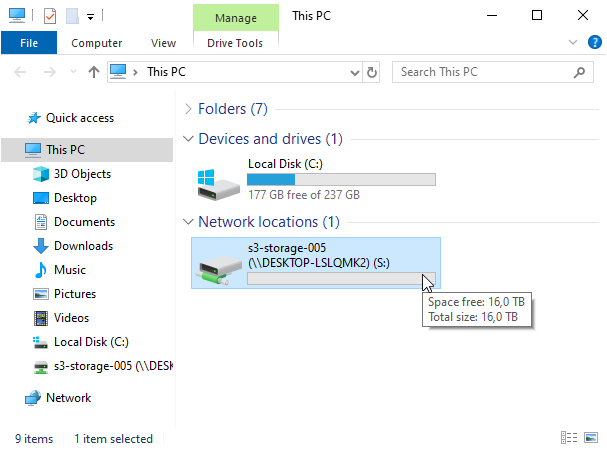
Your Amazon S3 bucket will appear in My Computer
Amazon S3 bucket appears in My Computer as a mapped drive