
The vast majority of the time Dashboards are correct, but occasionally you may come across these two possible scenarios. The Dashboard on the left shows red where the customer is currently running stable without chatter. The Dashboard on the right is just the opposite, and far rarer, where the Dashboard shows green, but the resulting cut is in chatter. In both cases the absence or presence of chatter is confirmed using Harmonizer.
Assuming the measurement (tap-test) is accurate, you can calibrate the material properties for a specific application. In the first case, the customer, through trial and error or just sheer luck, was able to find a small stable pocket, but not one within a major lobe or green area on the Dashboard. By adjusting the material properties, more specifically, the Cutting Stiffness (Ks), you can effectively dial in, or calibrate, the Dashboard and then optimize the cutting parameters. We have created a new process to make that easier.
You can access the training by CLICKING HERE.
You can open the Calibrate Dashboard calculator on your iPhone by using your camera and aim at the following QR code:

HERE IS WHAT IS HAPPENING:
Below are the stability lobe diagrams of the two Dashboards shown above. The customer's parameters (speed, width and depth of cut) are represented by the green dot. The upper diagram was used to create the initial Dashboard. As you can see the customer's parameters are just outside the stable lobe. We slightly adjusted the material properties. Note that the locations of the stable speeds did not change, but the height of the lobes, or maximum depth of cut, increased. In the lower diagram the customer's parameters are now in a stable lobe and show this in the calibrated Dashboard.

YOU CAN FIX THIS YOURSELF
You can have the Dashboard's cutting stiffness settings calibrated automatically clicking on the link below to open an email. Enter customer's stable DOC (where they are running now) in the first line and the Dashboard's maximum stable DOC on the second line.
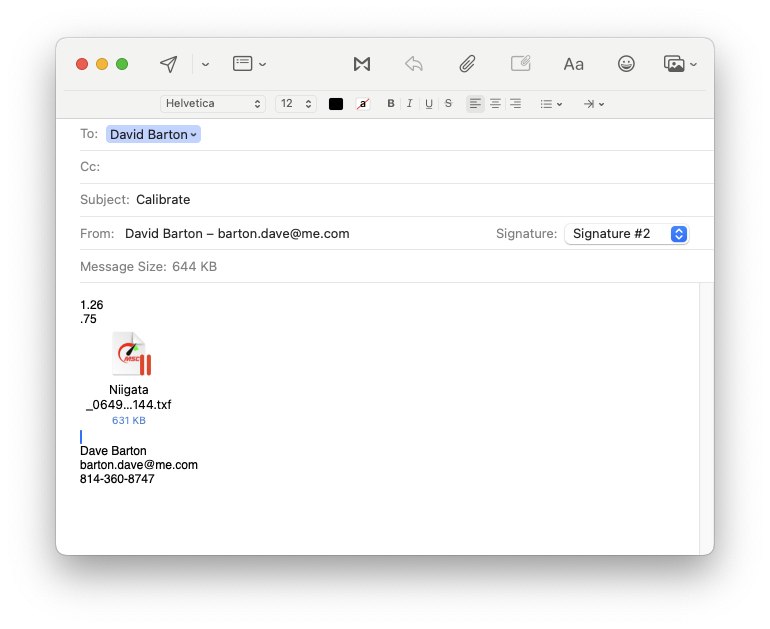
Do not add any other text or symbols and be sure to use a decimal point if needed. Attach the TXF file (not the Dashboard HTM file) and send. You will receive back a link that will open MillMax with corrected file. It will take a few minutes to process and for the link to be live.